

Key points
Logs exist on multiple levels: in the application itself and in the Cloud Foundry Runtime where it runs.

Runtime logs can be more important than application logs when serious problems occur (e.g., crashes), since the app itself may be unreachable.

Download application logs promptly—BTP stores them only for a short time (often 20 minutes or less).
When something goes wrong with software, checking the logs is always a good idea. The SAP Business Technology Platform (BTP) and the apps running on it are no exception.
In this article, we show you where to find logs in BTP and in the BTP application FlexGuide4 from Flexus, and how to download them.
You might assume that logs from a BTP application are sufficient for troubleshooting that application. However, keep in mind that the application runs in a runtime environment (Cloud Foundry), and runtime problems can affect the application. Furthermore, serious application errors (e.g., a crash) may prevent you from accessing the application at all. In both cases, you should consult the runtime logs as an additional source of information.
Logs in BTP
BTP logs exist at different levels, and it is important to distinguish between them. Logs are not available at the global account or subaccount level, but they are available at the Cloud Foundry Runtime level within spaces and potentially within applications running in the runtime.
Note: This article does not cover the Kyma Runtime. For information about logs in Kyma, refer to the documentation.
Logs in Spaces
Space-level logs are called “events.” Events document changes at the space level. For example, the system logs a space event each time you create a new route.
To view space-level logs, navigate to the space and click Space Events in the sidebar:
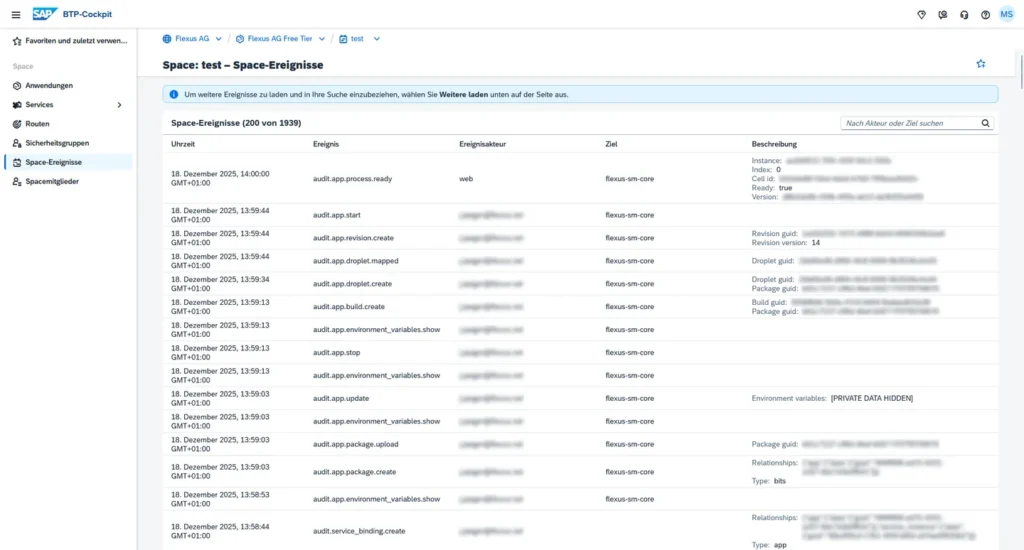
The Event column indicates what happened. The entries “audit.app.crash” and “audit.app.restart” are particularly relevant. The Description column can be helpful but usually provides only minimal additional information about what occurred.
Logs in the Application Overview
Application-level logs fall into two categories: “application events” and “logs.” Application events are all events related to this application. Logs include both logs sent by the application to Cloud Foundry and logs generated directly by Cloud Foundry components.
Application Events
To view application events, navigate to the application and click Application Events in the sidebar:
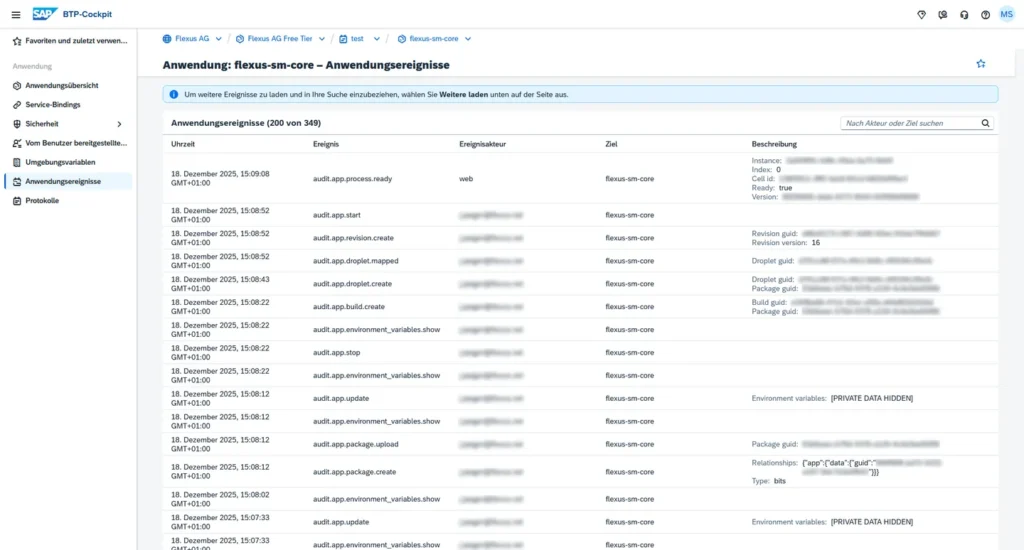
Application events lists all events related to that application. You can also find these events in the space events table, but you would likely need to scroll more to locate a specific event there.
Since these are events, the same principle applies: the table shows what happened, but the description rarely explains why it happened.
Application Logs
To access application logs, navigate to the application and click Logs in the sidebar.
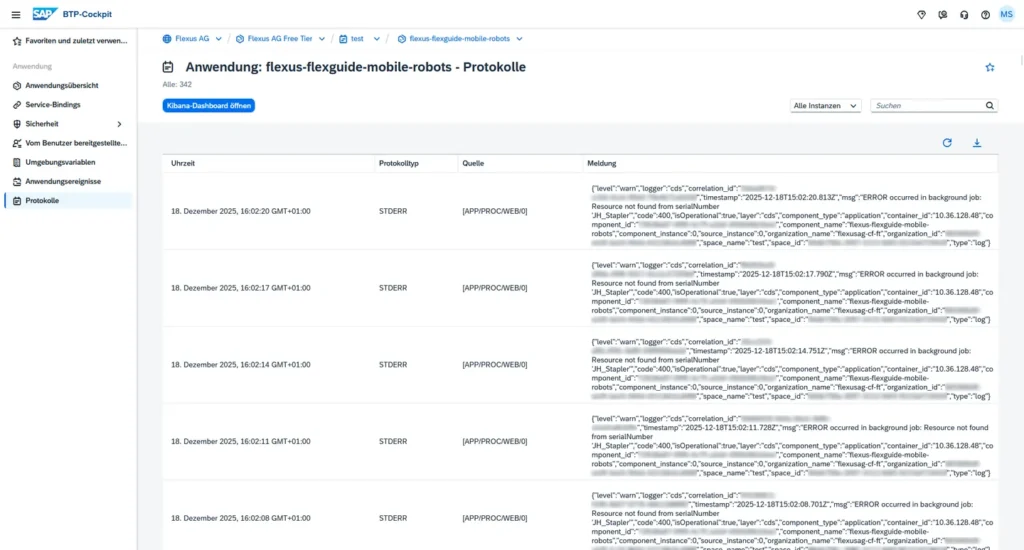
The table displays only the most recent logs. Depending on log volume, the covered time period can be very short (20 minutes or less). Therefore, when problems occur, we recommend downloading the logs promptly. Click the Download button in the upper right corner above the table.
The search field above the table filters only the text in the Message column. To search other columns for a specific word or phrase, use the downloaded file.
Logs in FlexGuide4
You can find FlexGuide4 logs under Logs in the sidebar. The columns are self-explanatory except for Type, which indicates the log level, or severity, of the message. The lowest level is DEBUG, followed by INFO, then WARN (short for “warning”), and finally ERROR as the highest level.
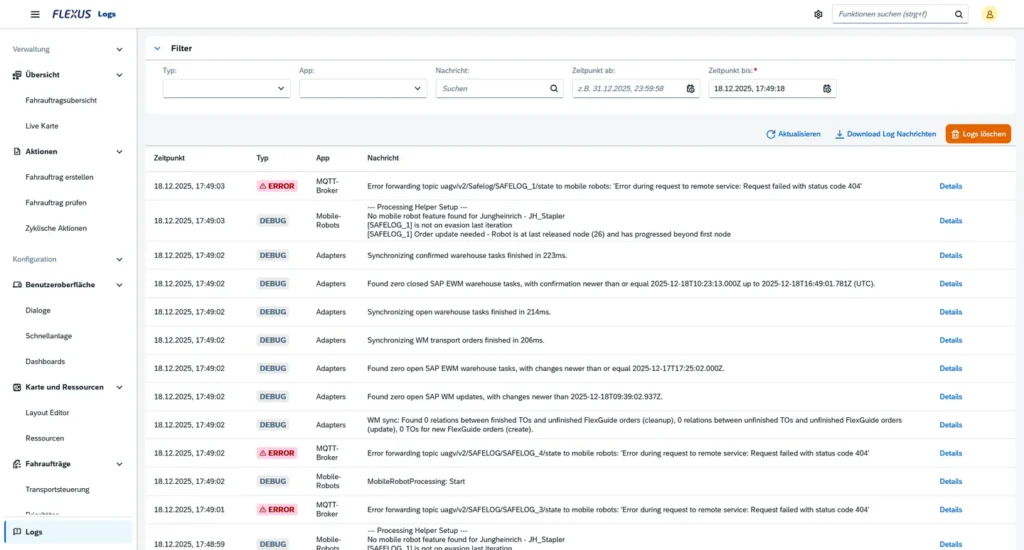
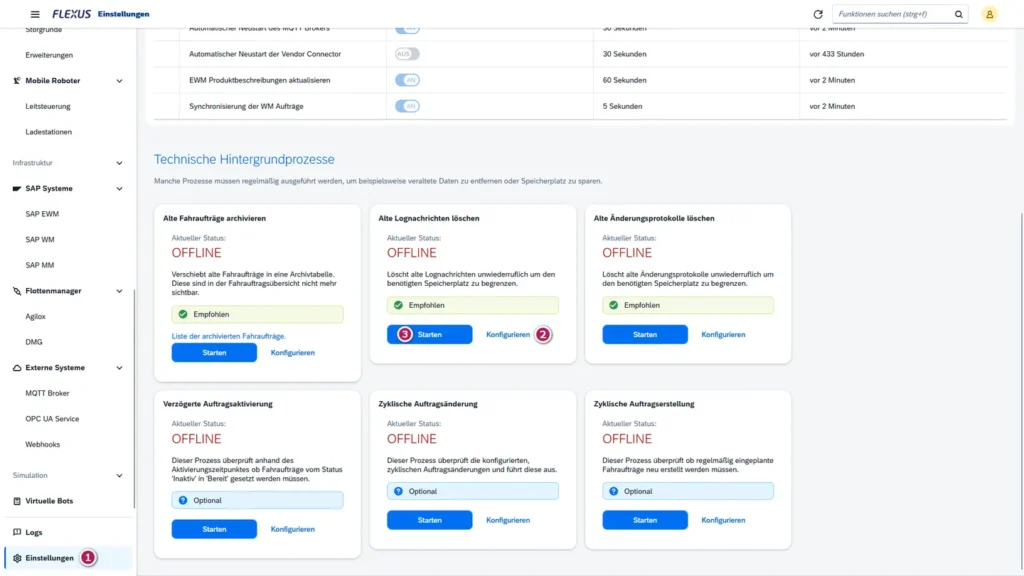
The orange Clear logs button deletes all logs. We recommend using this function sparingly. One of the few valid use cases is when log entries overload the database. If this happens, you should also configure a sensible retention period for the Delete old log messages job in the settings (step 1 in the screenshot below), set your preferred retention period (2), and then activate the job (3).
Error Diagnosis
FlexGuide4 consists of multiple modules. Modules are essentially mini-applications that work together to form a complete application. You can find an overview of the modules in the space where FlexGuide4 runs:
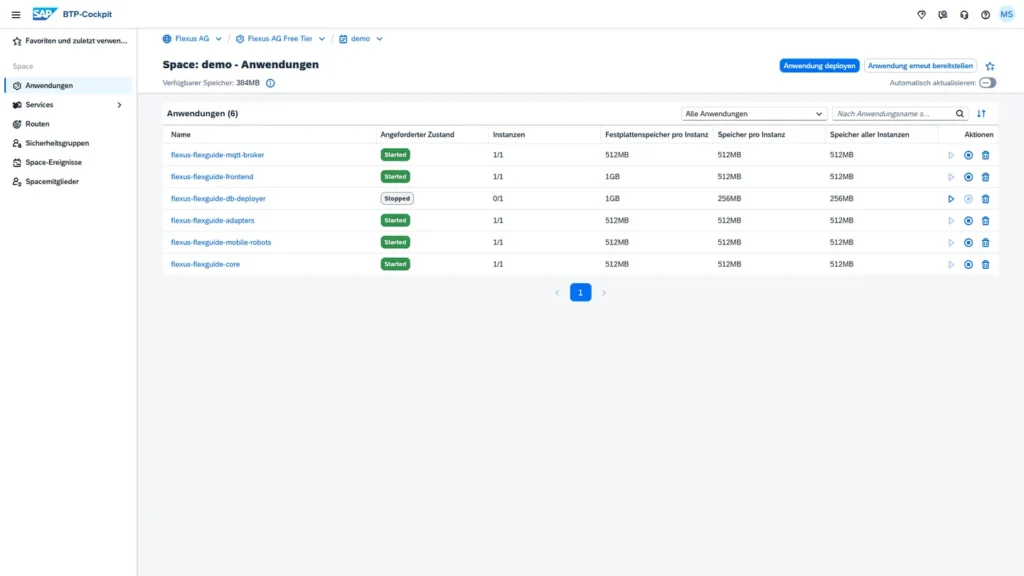
Note: The database deployer (db-deployer) being stopped is intended behavior. Starting it does not fix errors.
As the name suggests, the “core” module is particularly relevant. Unless you have reason to look elsewhere, start by checking the core module logs.
If a different module is causing problems, that module’s logs are naturally more relevant. The space events table can provide clues—look particularly for the events audit.app.crash and audit.app.restart. The Target column identifies the affected module.