

This article shows how an SAP HANA Cloud database can be created within a space of the Cloud Foundry environment on the SAP Business Technology Platform. Creating an SAP HANA Cloud instance is only possible when the necessary basic structure exists in the SAP Business Technology Platform. Therefore, it is recommended to first review the following article: Setting Up Global Account, Subaccount, Cloud Foundry and Spaces .
Key points:

You can create an SAP HANA Cloud database within the Cloud Foundry environment.

A database can be shared across multiple subaccounts and spaces.

The HANA database is one of the most expensive components within the BTP infrastructure.
Setting Up SAP HANA Cloud
SAP recommends creating a HANA instance through HANA Cloud Central, the administration interface for HANA Cloud. Therefore, you should first obtain access to Cloud Central.
Navigate to the Service Marketplace in the SAP BTP Cockpit within a subaccount (under the Services menu item). Select SAP HANA Cloud.
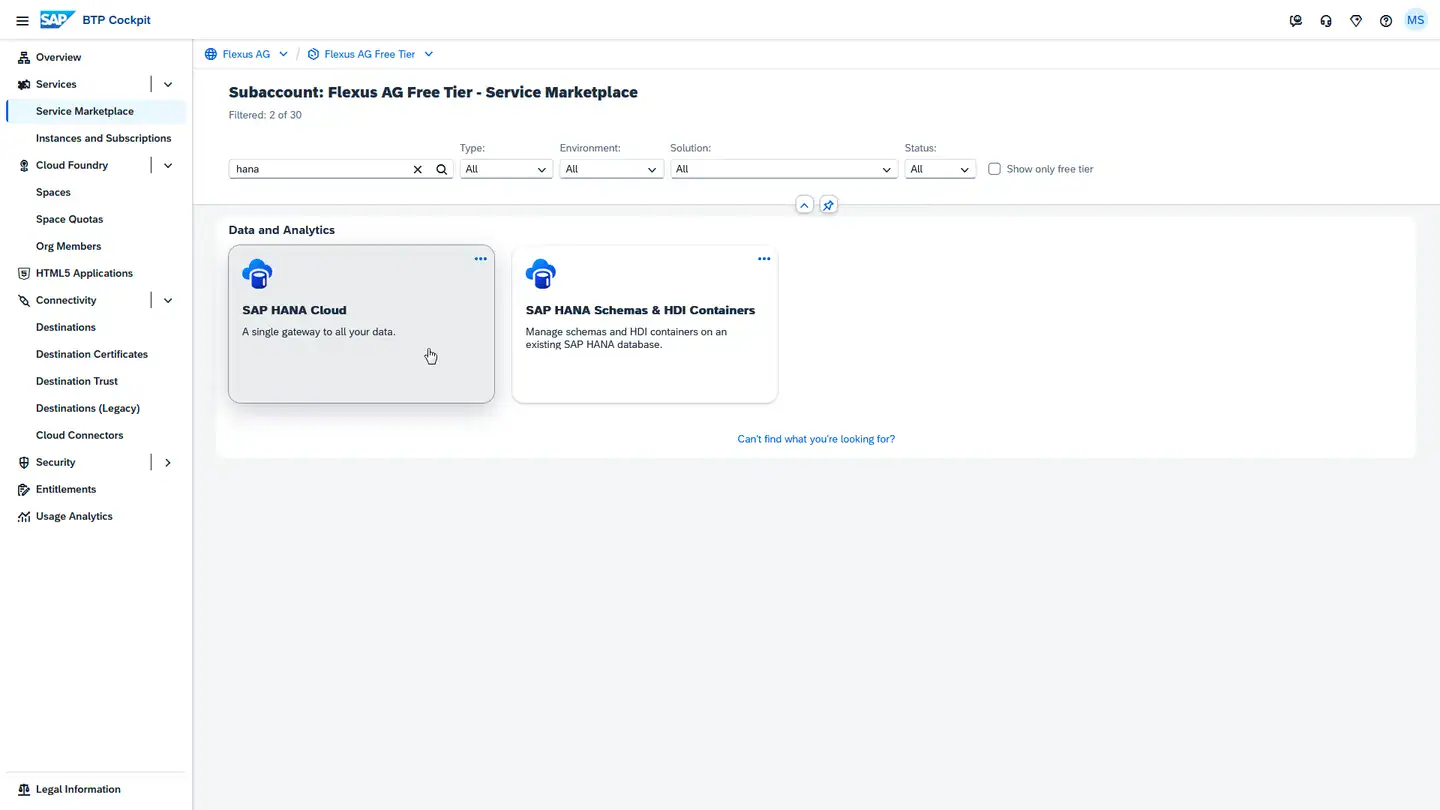
In the detail view that opens on the right side of the screen, click the Create button in the upper right.
In the popup window that now appears, you must select the tools plan. This grants you access to HANA Cloud Central. If the plan is not available for selection, you may not have granted the appropriate entitlement to the subaccount yet.
You can now access HANA Cloud Central by clicking on the corresponding hyperlink under Instances and Subscriptions in the Services menu item:
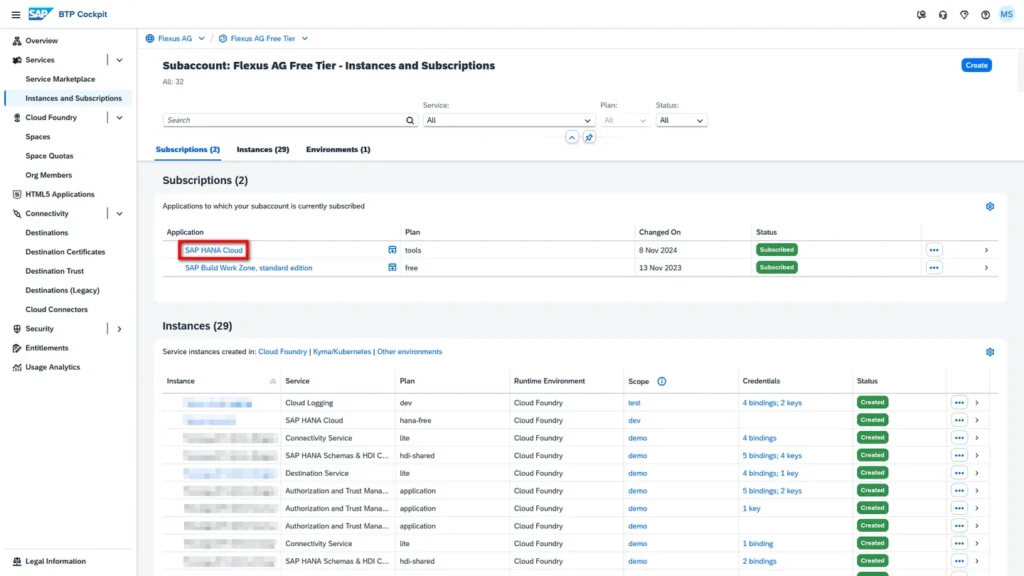
Through the Create Instance button in the upper right, you access a new interface to create and configure the database.
You reach the first step of the setup wizard. Under Instance Configuration, you can specify how you want to create the configuration. In this article, we cover the Configure manually option.
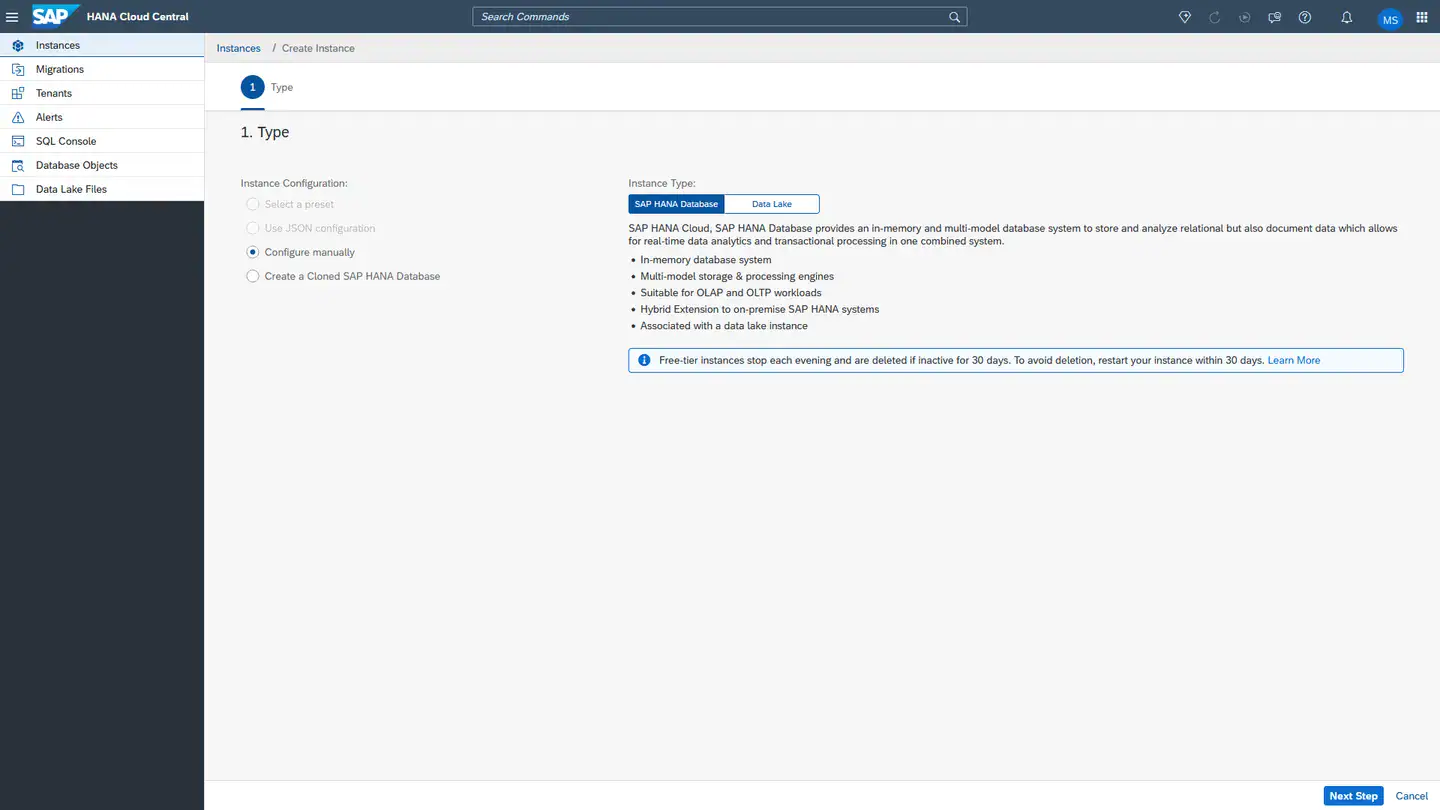
Note: The screenshots shown here are for the Free Tier version of SAP HANA Cloud. The basic setup steps remain identical in the standard version, but the user interface may differ in details.
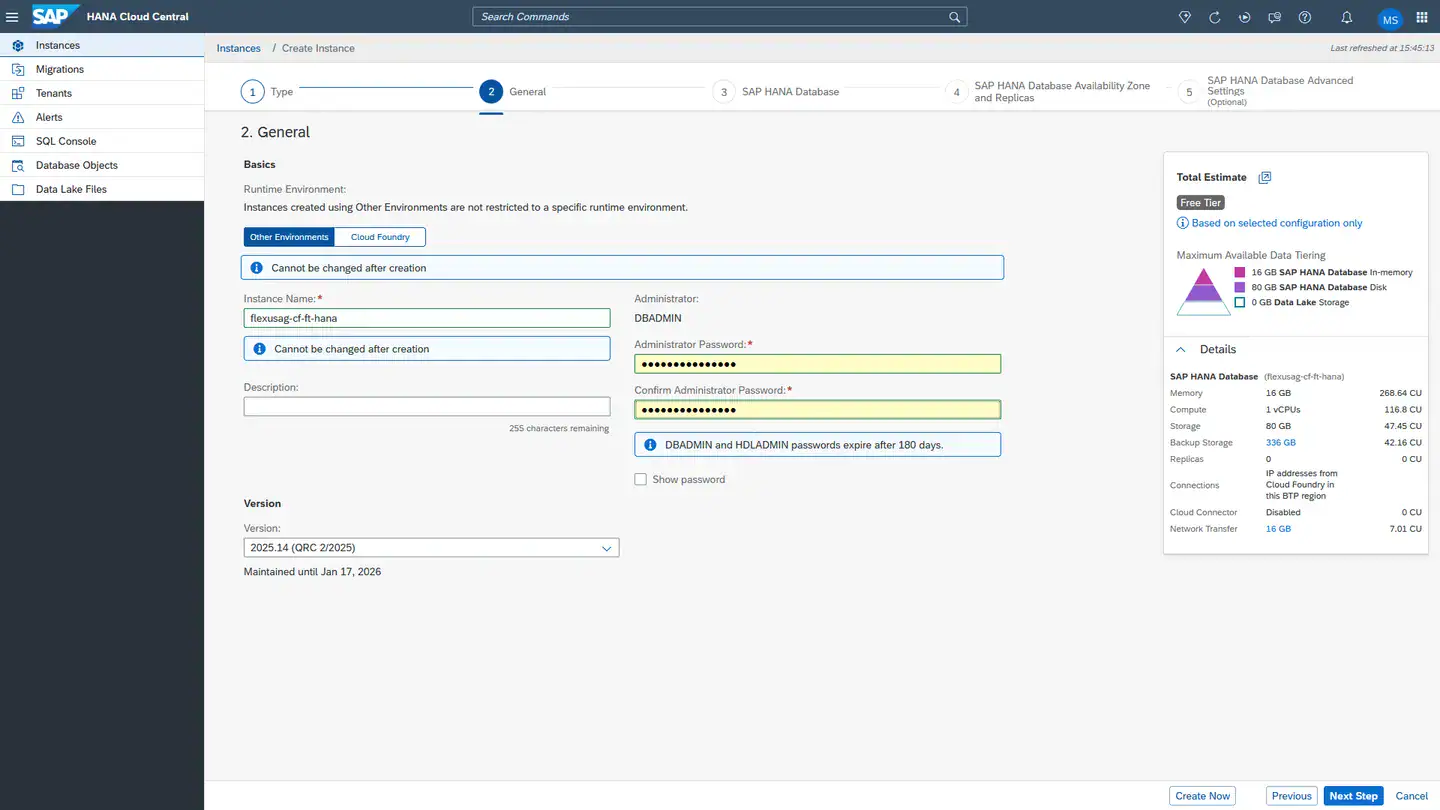
In the second step of the setup wizard, you must enter the database name and an initial administration password. We recommend leaving the runtime environment selection at the default, Other Environment.
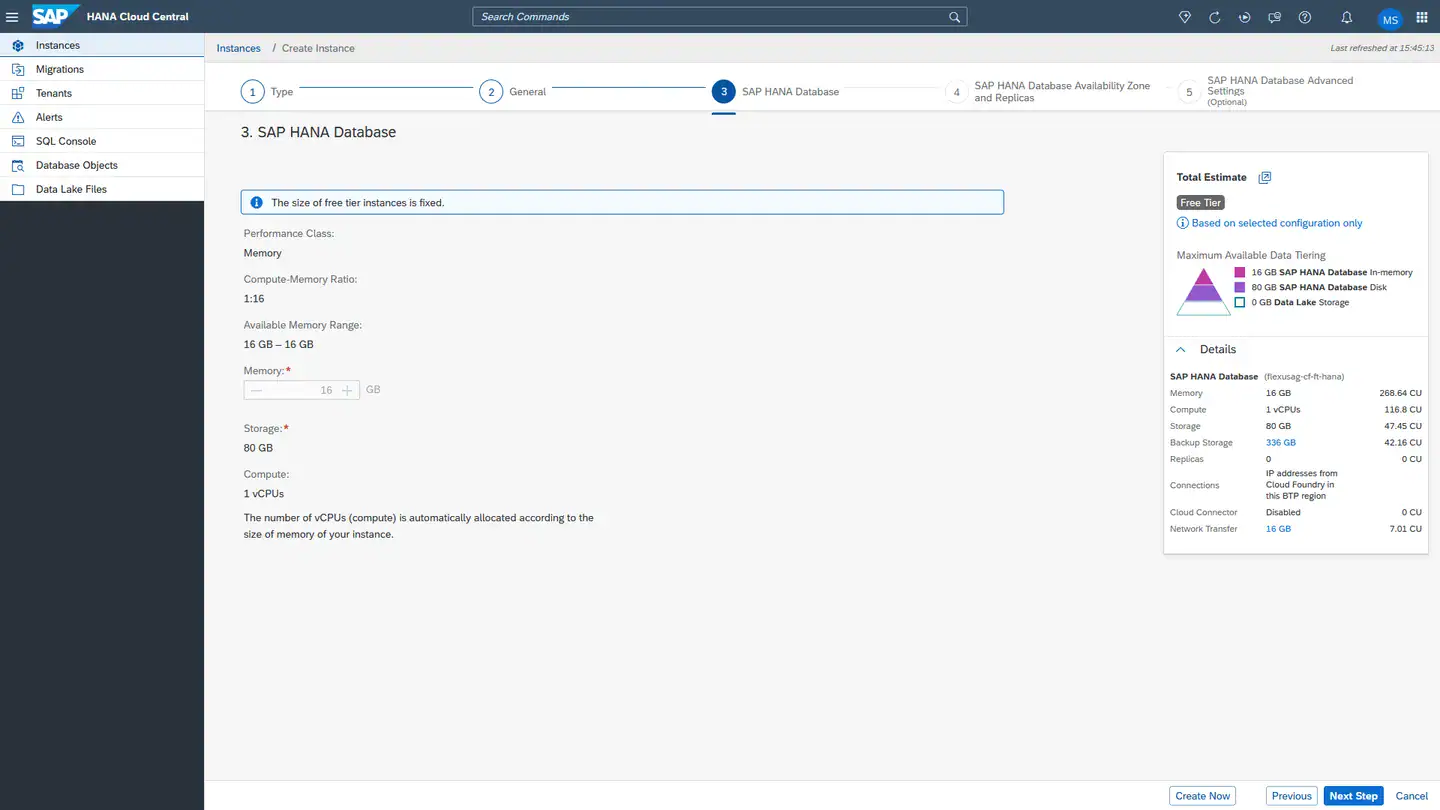
In the next step, you can specify the computing power available to the database. Before spending money on a HANA database, you should estimate the costs of your desired settings using the SAP HANA Cloud Capacity Unit Estimator. In the Free Tier, computing power is limited to 16 GB memory and 80 GB storage.
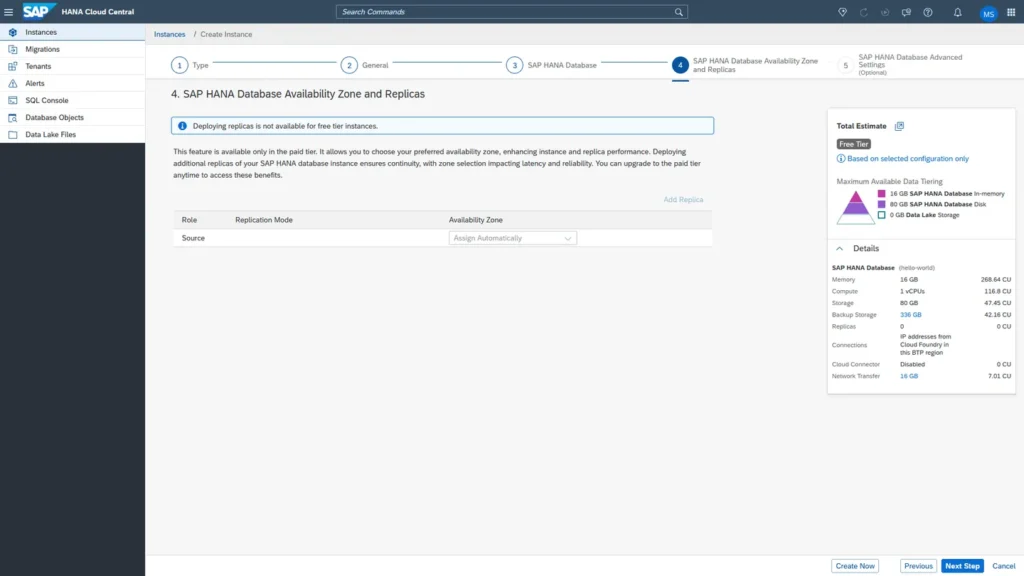
In step 4, you can add database replicas. Replicas are copies of the main database. This can increase database availability. However, replicas significantly increase costs, so their implementation should be carefully considered.
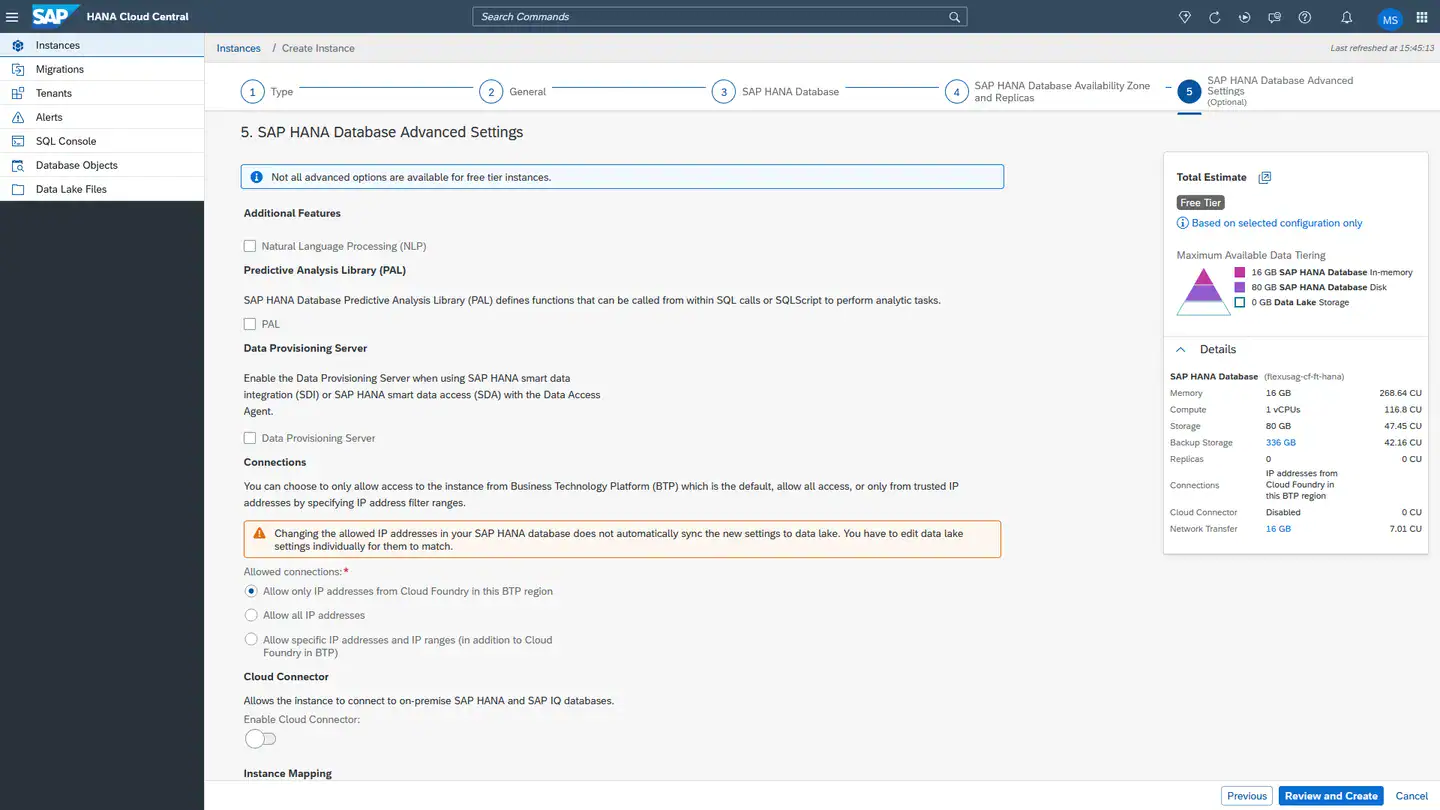
All settings in the fifth and final step can also be changed after setting up the database. Important at this point are primarily the allowed connections. These settings control which IP addresses are permitted to access the database.
In general, as few IP addresses as possible should be allowed. For applications deployed on SAP BTP, it is sufficient to allow only BTP IP addresses to access the database. We recommend leaving the selection at the default, Allow only IP addresses from Cloud Foundry in this BTP region.
Finally, wait a few minutes for the database to be completely created.
Further Steps
Since SAP HANA Cloud is one of the most expensive parts of the cloud infrastructure, the usage of the database and its placement within the BTP architecture should be carefully considered during the planning phase. The article What Architectures Exist in BTP? describes several possible architectures with different numbers of databases.
From a financial perspective, it makes sense to share a database across multiple subaccounts or spaces. The procedure for this is described in the article Sharing a HANA DB Between Spaces or Subaccounts .
For productive operations, it is important to have an overview of the possible backup scenarios for the database. These are described in the article HANA Cloud Database Backup.