

The two versions of On Premise ABAP development
ABAP development in SAP has evolved considerably in recent years. While SE80 (Object Navigator) was the standard development tool for ABAP for a long time, more and more developers have been relying on Eclipse with the ABAP Development Tools (ADT) since this was introduced by SAP almost 15 years ago.
But what are the differences between these two development environments and what are the advantages of the new Eclipse ADT?
User interface and usability
SE80 is a classic development environment integrated into the SAP GUI. It offers a tried-and-tested tree structure for object navigation and close integration with SAP-specific development tools. Thanks to its integration into the SAP GUI, SE80 is therefore always available on every SAP system and does not require any extra installation.
Eclipse ADT, on the other hand, is a modern, flexible IDE that impresses with its customizability and additional features. The user interface is more modern and allows for more efficient project management and a relatively free design of the appearance.
This is where Eclipse ADT scores highly with its advantages:
- Freely customizable interface design with distribution of various aspects of the IDE to the desired position. For example, the class explorer can be permanently positioned on monitor 1 on the left, the method list on monitor 2 on the right and the display of syntax errors at the bottom of monitor 1. The respective setting is restored each time Eclipse is started.
- Individually customizable colors for many parts of the surface, including possible prefabricated design add-ons for e.g. high contrast or dark mode
- The syntax highlighting can also be defined completely freely in order to recognize certain parts of the coding at a glance. Eclipse already provides a few keyword suggestions. However, these can be extended, changed or deactivated at any time.


- Keyboard shortcuts can also be customized or deactivated
Code completion and productivity
While SE80 has basic code completion, Eclipse ADT offers much more powerful auto-completion as you type, as well as code completion with inline documentation and automated refactoring capabilities.
Anyone who has ever had to go into a meeting during a coding session and changed the WLAN or from the LAN to the WLAN is probably also familiar with the unpleasant characteristic of SAP to close all SAP modes due to a connection failure. Eclipse ADT keeps the development data completely offline and therefore only has short waiting times when saving changes if the connection is not optimal, but at the same time also enables complete offline programming until saving.
For this purpose, Eclipse has the small but nice extra of a comment spell checker. To be precise, this means that any dictionary, e.g. German, can be integrated and Eclipse then automatically checks for spelling errors when writing code comments and marks them accordingly.
Debugging and performance
SE80 offers proven debugging functions directly in the SAP GUI, but Eclipse ADT scores with better performance and extended debugging functions. In particular, the option of asynchronous debugging, faster access to source code and the ability to adapt the source code during debugging make Eclipse ADT more attractive.
To make troubleshooting even easier, Eclipse ADT already displays syntax errors during active coding without the need to press an additional button, as is necessary in SE80. It therefore does not require an additional syntax check to detect an error, and the error can in some cases be automatically corrected directly with the Eclipse “Quick-Fix” function.
Disadvantages
Despite the advantages over the SE80, the new Eclipse ADT also has disadvantages. However, these are mainly limited to the start and familiarization with the new environment.
The first technical disadvantage is that Eclipse requires a Java installation and is not included in the SAP installation itself, so it must also be loaded onto the PC.
Once the technical hurdle has been overcome, the second and usually biggest hurdle comes. In contrast to SE80, where methods are displayed and edited individually, in Eclipse the complete class is displayed and edited as a file. And the method signatures are also maintained directly in the file, encapsulated from the actual method, and have a new type of method description:

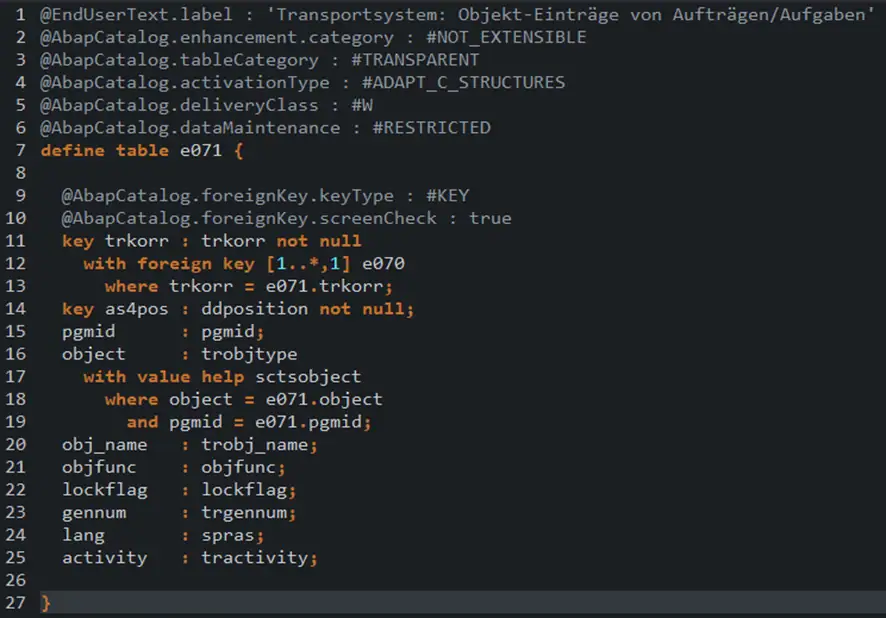
Tables and structures are edited in a source-based view instead of via a graphical user interface. This makes it difficult to get started, but can be supported initially by Popin SE80.
A minor disadvantage of the additional integration of SE80 into the Eclipse ADT environment is that there is no interface in Eclipse for editing some elements. Editing must then be carried out in a Popin SE80 in Eclipse, e.g. the definition of transactions.
Conclusion
SE80 remains a solid choice for traditional ABAP development and is particularly suitable for developers who are comfortable with the classic SAP GUI. However, those who want to work with modern development methods and benefit from better performance, code completion and extended integration should look into Eclipse ADT.
-At Flexus AG, we are free to choose the development environment that suits us best and support any colleague who wants to deviate from SE80. Want to get started with Eclipse ADT? Apply now!
Further resources
Installation instructions for SAP ADT: https://tools.hana.ondemand.com/#abap
Detailed instructions from DSAG: https://impulsant-dsag.de/wp-content/uploads/2024/08/2303_DSAG-Leitfaden_ADT-Eclipse-Leitfaden.pdf